 Accessible Shopfront
Writing useful alt text
By the end of this step: you will be able to decide which images need alt text, and write short, useful alt text for each one.
The short version
- Alt text is a short written stand-in for an image.
- Screen readers read it aloud to people who can't see the image.
- Write what the image tells people, not just what it looks like.
- If an image is only decoration, give it an empty alt so it is skipped.
What alt text is
Alt text is short for alternative text. It is a few words, stored with an image, that say what the image means. Visitors don't usually see it.
People who are blind often use a screen reader. It reads the alt text aloud to them.[1][2] Alt text also shows up if an image fails to load.[2]
This is the very first WCAG success criterion, 1.1.1 Non-text Content (Level A). It says images and other non-text content need a text version that does the same job.[3]
Step 1: Work out what kind of image it is
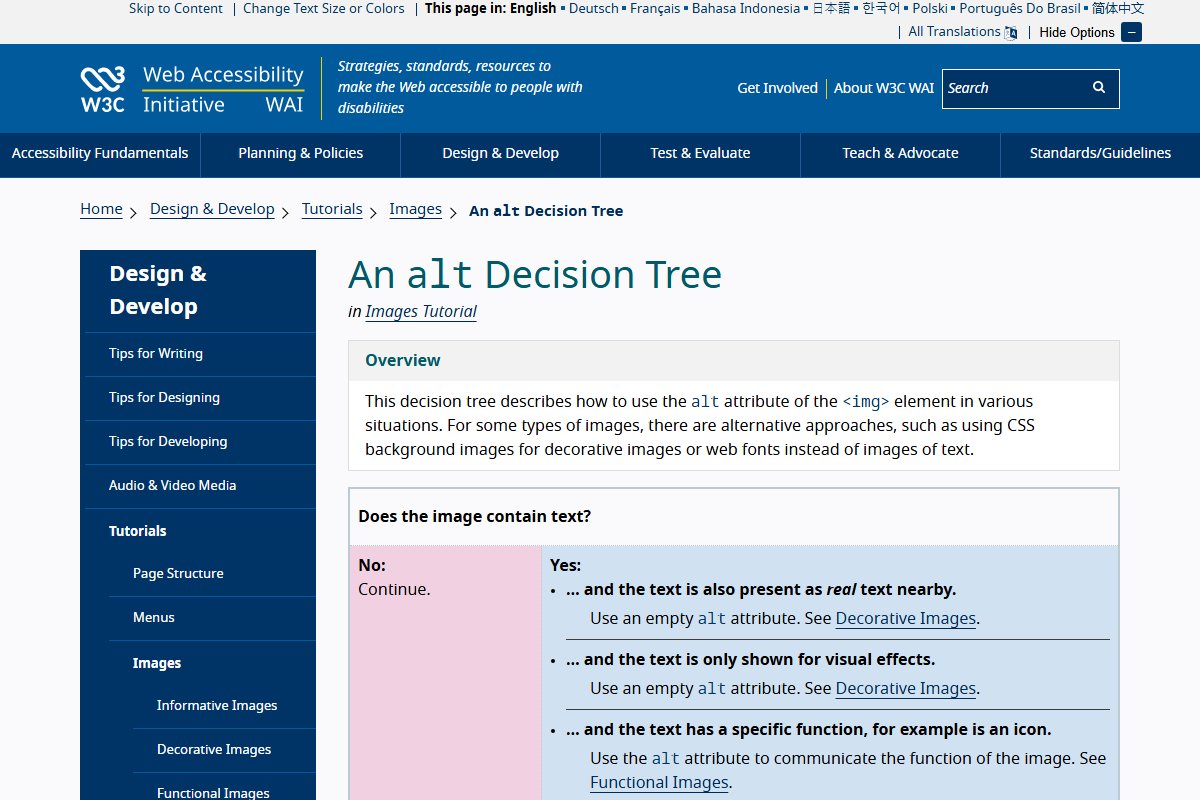
W3C has a simple decision tree. It asks a few yes-or-no questions about each image.[4]
Here is a short version of those questions:
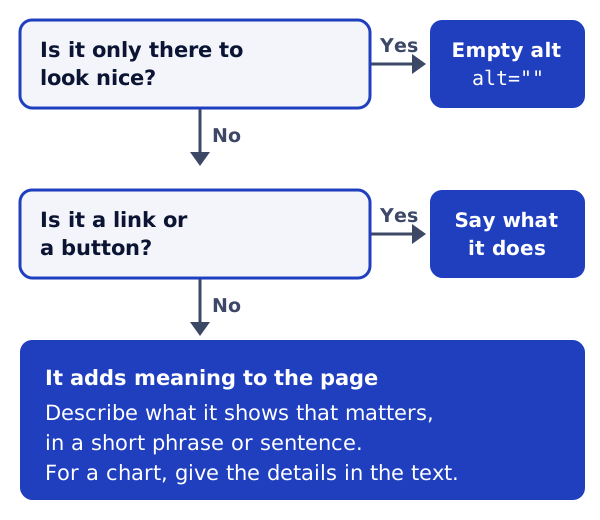
Most images on a small business site fit one of four kinds.
- Decoration. It is there to look nice and adds no information.[5] Example: a swirl under a heading.
- A link or a button. Clicking it does something. Example: your logo that links to the home page.
- An image with words in it. Example: a banner that says "Sale ends Friday".
- An image that adds meaning. Example: a photo of the product you sell.
Step 2: Write the alt text
For decoration, use an empty alt. In code, that is alt="". Screen readers then skip the image.[5]
Don't leave the alt out completely. Some screen readers then read out the file name instead.[5]
For a link or a button, say what it does, not what it looks like.[6] W3C gives this example. Write "search" for a magnifying glass icon. Write "Example.com homepage" for a logo, not "Example.com logo".[6]
For an image with words, put the same words in the alt text.[1] Better still, write those words as real text on the page.
For an image that adds meaning, describe what matters in a short phrase.[7] Put the most important part first.[7]
For a chart or graph, keep the alt short. Say what kind of chart it is and its main point.[1] Put the full details in the text on the page.
Step 3: Check your words
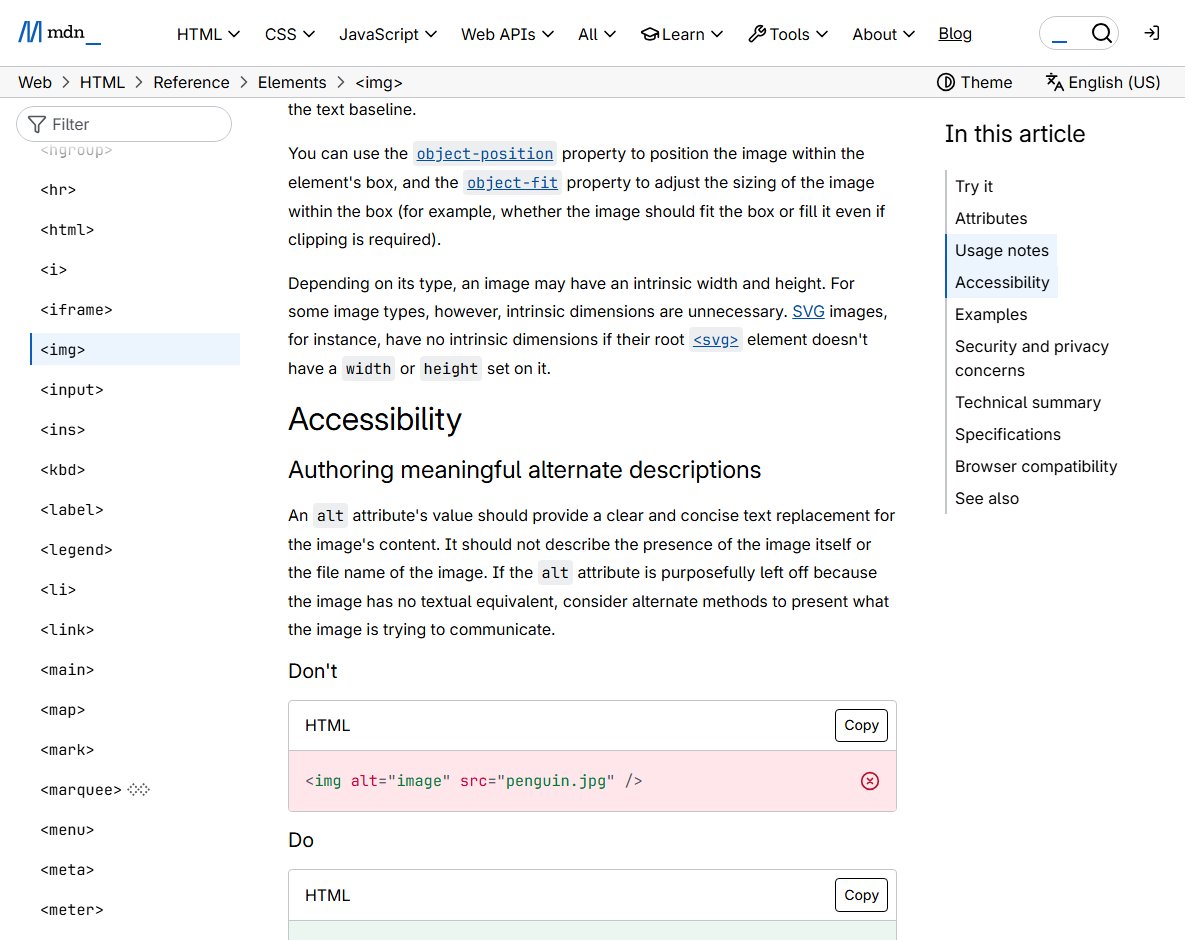
Read your alt text with the words around it. MDN, Mozilla's guide for web developers, says alt text should not just say an image is there. It should not be the file name either.[2]
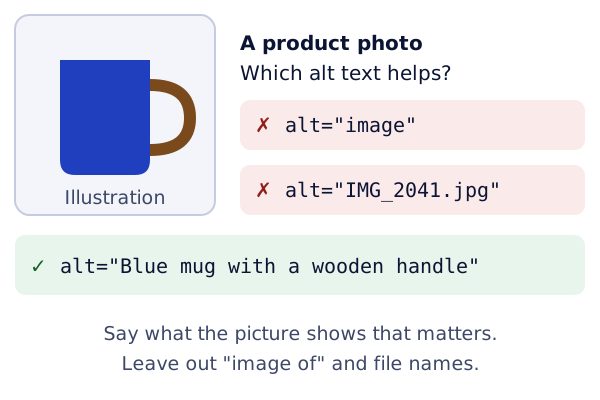
You also don't need to start with "image of" or "picture of".[7] Screen readers already say it is an image.
W3C has a handy test. Imagine you are reading the page to someone over the phone.[7] What would you say about each picture? That is your alt text. If you would say nothing, it is probably decoration.
Try it on your site
- Pick one page with images, like your home page.
- List every image. Next to each one, write which of the four kinds it is.
- Write the alt text for each one. Keep each to one short sentence or less.
- Add it in your website editor. Look for a box called "alt text" or "image description" in the image settings.
Sources
- Image Alternative Text - Easy Checks, W3C Web Accessibility Initiative (accessed 2026-10-18)
- <img>: The Image Embed element, MDN Web Docs (accessed 2026-10-18)
- Web Content Accessibility Guidelines (WCAG) 2.2, W3C (accessed 2026-10-18)
- An alt Decision Tree, W3C Web Accessibility Initiative (accessed 2026-10-18)
- Decorative Images (Images Tutorial), W3C Web Accessibility Initiative (accessed 2026-10-18)
- Functional Images (Images Tutorial), W3C Web Accessibility Initiative (accessed 2026-10-18)
- Tips and Tricks (Images Tutorial), W3C Web Accessibility Initiative (accessed 2026-10-18)