 Accessible Shopfront
Testing your own site
By the end of this step: you will have a simple testing routine you can run on any page, and know what automatic tools can and can't tell you.
The short version
- You can test a lot yourself, for free, with no special skills.
- Start with an automatic checker, then test by hand.
- Use the keyboard, zoom in, and listen with a screen reader.
- Tools help, but they can't tell you on their own that a site is accessible.
Start with W3C's Easy Checks
W3C publishes Easy Checks. They help you start to review a web page.[1] Each check explains what to look for and why.
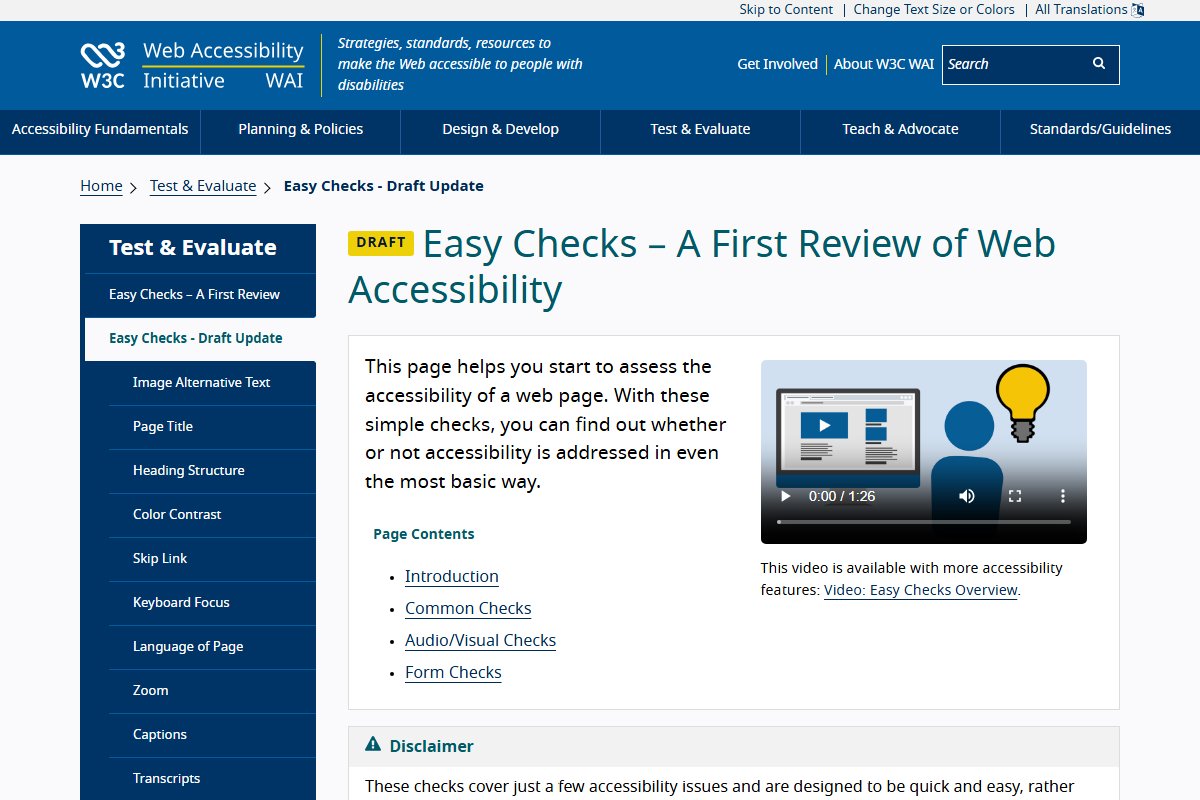
W3C is honest about their limits. The checks cover just a few issues and are meant to be quick.[1] A page could pass them and still have big problems.[1] So treat them as a first look, not a final answer.
A simple routine
Here is a routine you can run on any page. It brings together the earlier steps of this course.
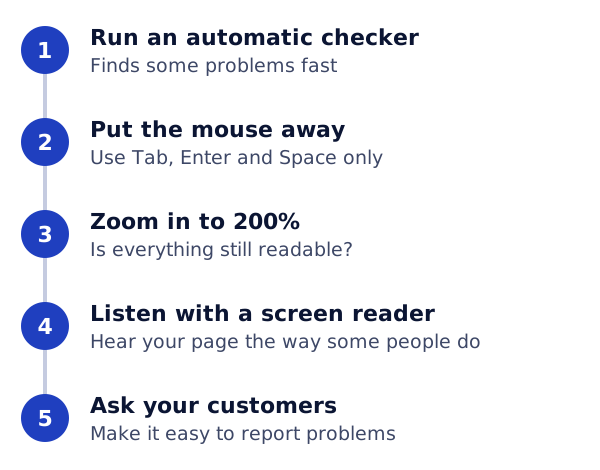
Step 1: Run an automatic checker
An automatic checker is a tool that scans a page's code for common problems. W3C keeps a list of evaluation tools you can look through.[1]
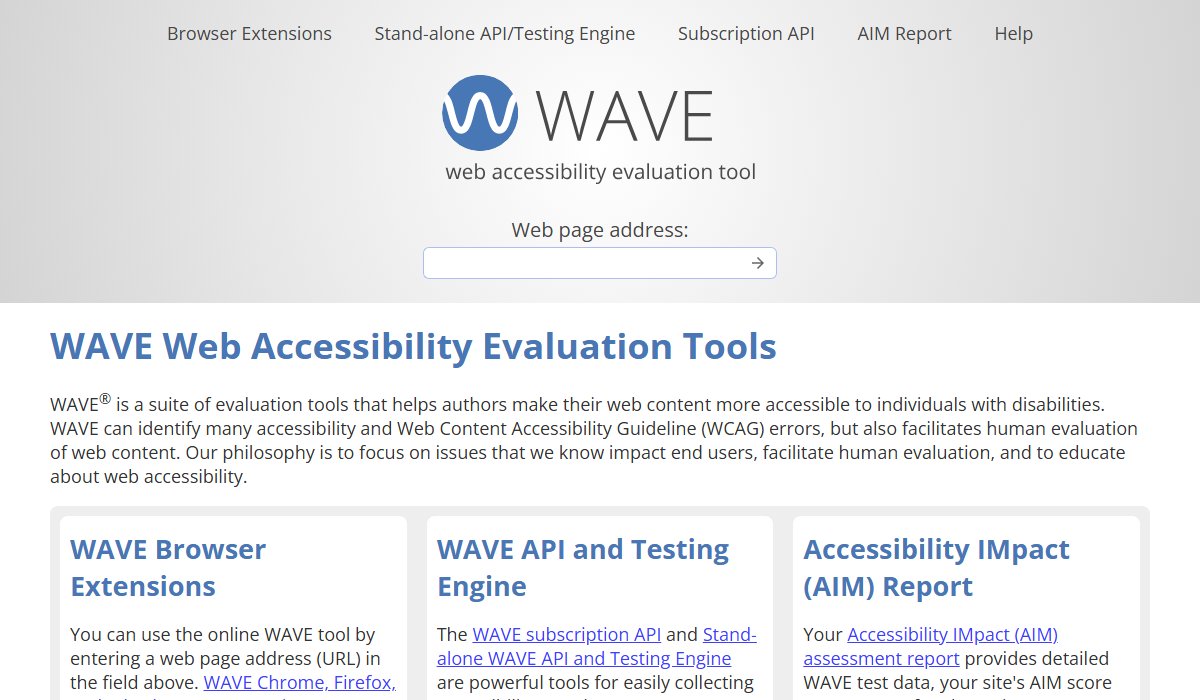
WAVE, from WebAIM, is one example. You type in a web page address, and it checks that page.[2] It can find many WCAG errors. It also helps you check other things by hand.[2]
Fix the clear errors first, like missing alt text or missing form labels. Then move on to the hand checks.
Step 2: Know what tools can't do
Tools can't check everything. W3C says human judgement is required.[3] Tools can also give false or misleading results.[3]
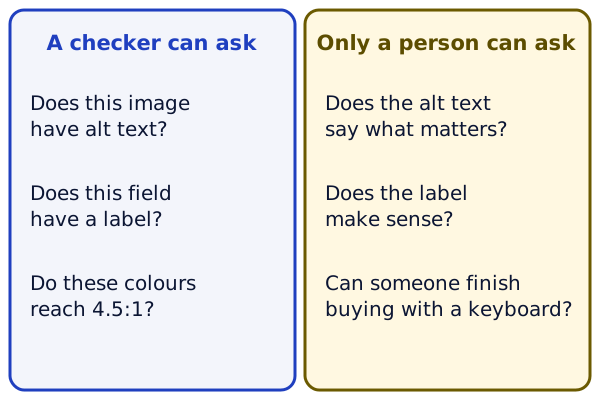
For example, a tool can see that an image has alt text. It can't tell if the alt text is any good. Only a person can judge that.
Step 3: Put the mouse away
Use only Tab, Shift + Tab, Enter and Space. Work through your most important task, like booking or buying. Step 7 lists what to look for.
Step 4: Zoom in
Make your browser window fairly narrow.[4] Then press Ctrl and + (or Cmd and + on a Mac) five times. That should take you to 200%.[4] Check that everything still reads and works, as in Step 6.
Step 5: Listen with a screen reader
Many computers and phones come with a screen reader already.
- On Windows: Narrator is built in, so there is nothing to install.[5] Press Ctrl + Windows logo key + Enter to turn it on or off.[5]
- On an iPhone: VoiceOver is a screen reader you control with gestures.[6] Apple's guide shows how to turn it on and practise.
Close your eyes, or turn your screen away, and listen to your home page. Do the page title, headings, links and images make sense? It feels strange at first. That is normal. You are learning what some of your customers hear.
A word on overlays
Some products promise to fix a whole website with one plug-in. These are often called overlays. This course does not recommend any of them.
W3C says tools can only help you check. They can't decide if a site is accessible.[3]
In January 2025, the US Federal Trade Commission (FTC) announced a case about one such plug-in. The company had claimed its tool could make any website meet WCAG.[7] The FTC said those claims were false, misleading, or not backed up. The company agreed to pay $1 million to settle.[7]
The real fixes are the ones in this course. They live in your site itself.
Try it on your site
- Choose your three most important pages, like home, contact and checkout.
- Run each one through an automatic checker. Note the errors.
- Do the keyboard, zoom and screen reader checks on each page.
- Make a short list of problems, with the worst first. Fix one each week.
Sources
- Easy Checks - A First Review of Web Accessibility, W3C Web Accessibility Initiative (accessed 2026-10-18)
- WAVE Web Accessibility Evaluation Tools, WebAIM (accessed 2026-10-18)
- Selecting Web Accessibility Evaluation Tools, W3C Web Accessibility Initiative (accessed 2026-10-18)
- Zoom Levels - Easy Checks, W3C Web Accessibility Initiative (accessed 2026-10-18)
- Complete guide to Narrator, Microsoft Support (accessed 2026-10-18)
- Turn on and practice VoiceOver on iPhone, Apple Support (accessed 2026-10-18)
- FTC Order Requires Online Marketer to Pay $1 Million for Deceptive Claims that its AI Product Could Make Websites Compliant with Accessibility Guidelines, US Federal Trade Commission (accessed 2026-10-18)